

Hashnode Blogs on GitHub Profile

S
A passionate software developer who enjoys sharing his thoughts with others and learning from them vise versa!
Search for a command to run...
Thanks Sadra Yahyapour. I was searching for a solution like. However, do you thing It would be possible to add cover images too?
This is awesome. I automated my GitHub profile, thanks to you. Thank you very much for this blog. https://github.com/Priyansusahoo
Can you share more information, please?! :)
I also got this error. I will leave the solution here, if anyone has a problem, they can fix it. I think this part can be added to the blog post as an update. go to "Repository Settings > Action > General" and enable "read/write workflow permission".
Super cool! I need to do this when I redesign and update my GitHub profile page.
That would be so nice!
This was a great post! I tried it on my profile and it looks good. Thanks for sharing with us!
I looked over that. That's awesome! Thanks for the shout out. You're welcome.
You're welcome! I'm glad you enjoyed it.
you killed it. Thanks for the update. I just did mine and it is working perfectly well
You got this! That's our job to automate things. :)
I tested my Hashnode hackathon-winning project using a complex CLI-integrated Passmark test case.

LLM tools you need after your Hashnode article is published.
I tried Hashnode Docs for the first time. Here are my impressions and suggestions for improvements.

Since Python introduced the ability to add generic types to functions, the language has become much more type-friendly and encourages you to follow this convention for more maintainable code. Obviously, this will lead to a better development experien...
In this quick tutorial, I’ll show you a GitHub action that lets you add a small, cool-looking chart badge that shows your Python packages' download rate over the past weeks. This method is completely free and open-source. https://github.com/lnxpy/pyp...

@hashnode provides an RSS feed out of all your activities on its platform. You can find it on <your-domain>/rss.xml. In this article, we're going to list all your published articles on your GitHub profile.
Here is a simple preview of what we're going to have at the end of this simple tutorial:

Follow up these steps and make your GitHub profile synced with your Hashnode one!
There is an easter-egg on GitHub where you can create a repository with the same name as your username. Whatever you write to its README.md file will appear on your profile page!
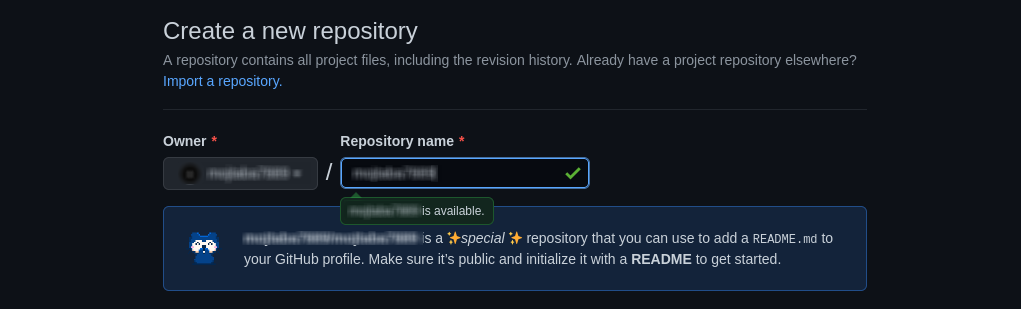
Don't forget to check the "Add a README file" box while creating the repository. Create the repository and you'll have a README view on your main profile page.
Add the following snippet somewhere in your README.md file.
#### :books: Recent Blog Posts
<!-- BLOGPOSTS:START -->
<!-- BLOGPOSTS:END -->
That's how the application recognizes where it has to put the list.
Navigate to github.com/<your-username>/<your-username> and open up the "Actions" tab. Click "setup a workflow yourself" to create a new blank workflow.
Paste the exact same workflow configuration you see down here. (It syncs every 6 hours of the day. You can change its schedule by changing the cron value)
name: Hashnode Blog Posts
on:
  schedule:
    # Runs every 6 hours of the day
    - cron: '0 */6 * * *'
  workflow_dispatch:

jobs:
  update-readme-with-blog:
    name: Update this repo's README with the latest blog posts
    runs-on: ubuntu-latest
    steps:
      - uses: actions/checkout@v2
      - uses: gautamkrishnar/blog-post-workflow@master
        with:
          comment_tag_name: "BLOGPOSTS"
          feed_list: "<link-to-your-rss>"
          template: "$newline - $randomEmoji(💯,🔥,💫,🚀,🌮) [$title]($url)"
          commit_message: "recent posts section updated"
          gh_token: ${{ secrets.GITHUB_TOKEN }}
Replace the feed_list value with <your-domain>/rss.xml. In my case, It's like this:
feed_list: "https://imsadra.me/rss.xml"
The cron part is related to the running schedule of your action. Create an appropriate pattern so then your README.md file will be synced based on that schedule.
You can create your proper cron patterns easier with Crontab Guru. Here are some samples you may need for your case though.
| Meaning | Pattern |
| Every day at 12:00 AM | 0 12 * * * |
| Every 6 hours | 0 */6 * * * |
| Every 1 hour | 0 * * * * |
| Every 30 minutes | 30 * * * * |
To test the result, open up the "Actions" tab and run the workflow manually only this time. To do that, select the action we just created from the left-hand side and click the "Run workflow" drop-down. Finally, press the "Run workflow" green button.
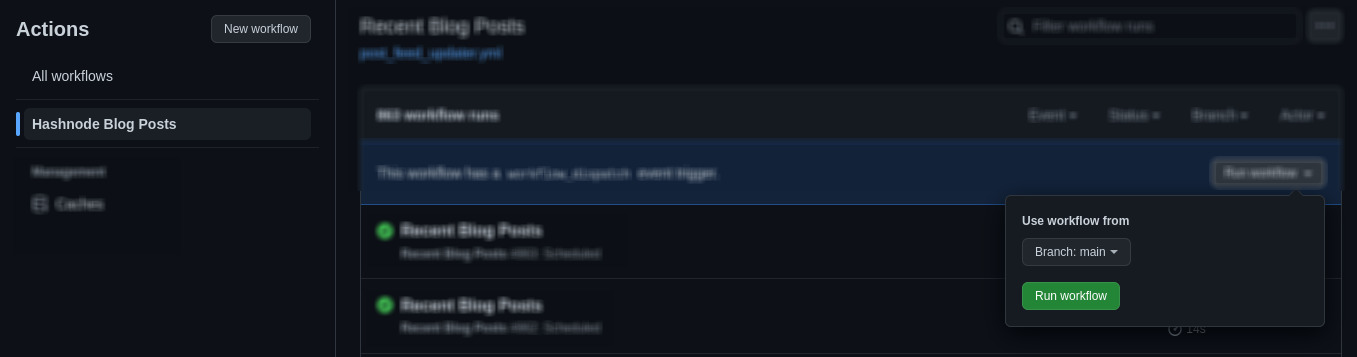
Wait a few seconds to get your workflow done. Once it's run successfully, head back to your GitHub profile and enjoy the result.
There are multiple configuration options you can apply for your workflow since we're using a third-party action. You're able to use emojis as your bullet lists, list the last X articles from the feed, sort the list, etc. You can find all options here.
Here is my GitHub account that uses the same technique we described in the article. Feel free to dive through the codes and projects. I'm so into open-source so you're always welcome to my profile!